


Requirements
This product is suggested to be installed on a server with the mentioned Operating System, specs and necessary network settings as follows:
- System Requirements
- 32 Gb RAM
- 8 core CPU
- 300GB Disk (For Collector 500GB)
- Ubuntu v20 or higher
- Docker Engine installed
- Docker compose installed
**These are average requirements and valid for all POCs.
- On firewalls where POC is planned a user account having administrative rights needs to be created.
- Network access from the server to the related firewalls and their related L3 switch components must also be given on the following service ports:
- TCP/22: for switches/routers
- TCP/80
- TCP/443
- ICMP
- Any other port that may be needed to access if non-standard ports are used.
- Syslog traffic to the related syslog server would be allowed from the Manager IP address UDP/514 for Opinnate internal logs.
- Syslog traffic from firewalls to the Collector needs to be configured and firewall access be given if required. UDP/514
- Manager to the related mail server needs to be configured and firewall access be given if required. It is generally TCP/25.
- Manager to LDAP access to the internal directory server needs to be given on firewalls. It is TCP/389 or TCP/636
- Radius access to internal AAA servers needs to be given for Manager on firewalls and the necessary configuration be done if the preferred remote authentication is Radius.
- Manager to Collector: TCP/8081, TCP/5000 for internal communication
- Collector to Manager: TCP/3306 for internal communication
- Admins to Manager: TCP/443, TCP/22 for management access
- Admins to Collector: TCP/5000, TCP/22 for management access
Installation Steps
ISO-based Installation
A single ISO image file will be downloaded from support portal: support.opinnate.com.
Using this image file both Manager and Collector installations can be made
Here are the steps and screenshot for this installation:
When the server is booted from ISO file, there will be a screen showing up asking if Manager or Collector installation to be made.
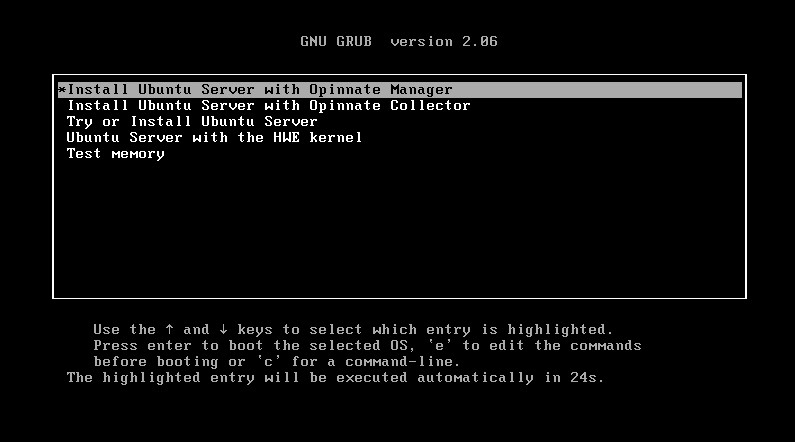
After the related selection necessary IP address and DNS settings will be made.
Docker-based Installation
- Docker Engine Installation (if not installed already)
- Docker Compose Installation (if not installed already)
- Downloading files
- Running script
Step-by-Step Instructions
- Docker Engine and Docker Compose Installation
You can also follow the instructions from docker website:
Docker engine installation : https://docs.docker.com/engine/install/ubuntu/
Docker compose installation: https://docs.docker.com/compose/install/linux/#install-using-the-repository
// Uninstall old version
sudo apt-get remove docker docker-engine docker.io containerd runc
// Update apt package
sudo apt-get update
sudo apt-get install \
ca-certificates \
curl \
gnupg
// Add docker official GPG key
sudo install -m 0755 -d /etc/apt/keyrings
curl -fsSL https://download.docker.com/linux/ubuntu/gpg | sudo gpg –dearmor -o /etc/apt/keyrings/docker.gpg
sudo chmod a+r /etc/apt/keyrings/docker.gpg
// Use the following command to set up the repository
echo \
“deb [arch=”$(dpkg –print-architecture)” signed-by=/etc/apt/keyrings/docker.gpg] https://download.docker.com/linux/ubuntu \
“$(. /etc/os-release && echo “$VERSION_CODENAME”)” stable” | \
sudo tee /etc/apt/sources.list.d/docker.list > /dev/null
// Update the apt package index
sudo apt-get update
// Install docker engine and docker compose
sudo apt-get install docker-ce docker-ce-cli containerd.io docker-buildx-plugin docker-compose-plugin
// Check if it is ok.
Sudo docker run hello-world
- Downloading files
Following are the files needed:
- several .tar files that are containing Opinnate Docker images,
- a docker-compose.yml file,
- run.sh file that is a bash script to load the Docker images and run the compose file.
Extract the contents of the compressed file, preferably to /srv/opinnate directory.
Execute the bash script with sudo privileges.
- Running Script
- sudo bash run.sh
Script will import the docker images and run docker-compose file.
Access Opinnate application in https://localhost:443 or in https://<ip of the device that the app is running on>:443 from any other machine.
Default username and password of the system is admin for the username and opinnate for the password.
Upgrading from 4.2 release
- Opinnate will provide v5.1.1 Upgrade File(s).
- Connect Opinnate Web UI via browser with HTTPS protocol.
- There is “System Configuration / Upgrade” menu in “System” on left menu bar.
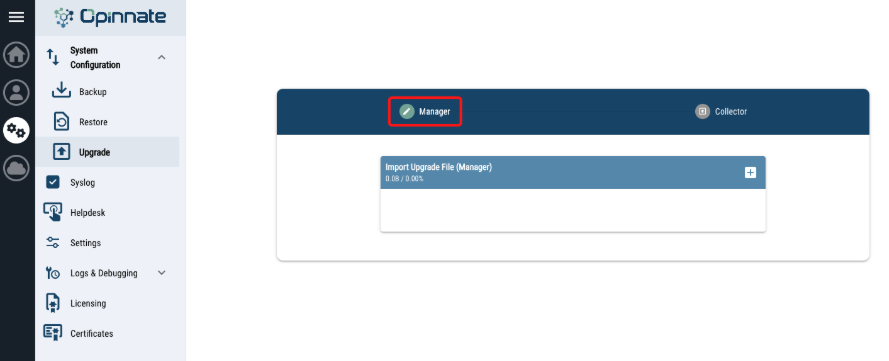
- Select the upgrade zip file and click upgrade.
- Then cloud/upload icon will appear on right/up corner and click on it.
- The system will log you out after each upgrade process.
- While upgrading, services will restart, Services can be controlled with “watch docker ps” from cli.
Opinnate Collector Installation
Opinnate Collector installation is made on a separate server with the requirements mentioned before through the same installation steps using the same image file. It is important not to start this installation process before the Manager system installation and first-time data renewal is made. Once installed, syslog configuration can be made on Opinnate Manager after integrating with Collector.
- Opinnate Manager Integration:
Integration with the Collector component can be made via Virtual Area/Settings/Device Integration/Collector menu. There is API integration between each component, so for the manager to connect to collector component the IP address must be given in the form IP Address:8081. Once it is added each firewall integrated to the related Virtual Area will be seen with the trusted IP field missing. For each firewall the related IP address used for sending syslog messages must be identified for rule usage to work. Starting from 5.1.1 release multiple Collector components for each Virtual Area is supported.
- Syslog Configuration on Firewalls:
Syslogs are collected on UDP port 514. For each firewall from which the syslog messages are collected must be configured for sending syslog messages. The related syslog configuration steps can be found on each firewall vendor administration guide for the related version. However, there are a couple of important items to remember for this integration.
- For Check Point firewalls the syslog format must be json.
- For Fortinet firewalls the sender IP address for syslog messages must not be on the same network or broadcast domain with Collector.
- If there are firewalls or other L3 devices between the Collector and firewalls, the necessary configuration to give access to syslog messages must be made.
- For Palo Alto Firewalls the log format must be like the following. The configuration can be made on Syslog Server Profile > Custom Log Format > Config
$receive_time|$serial|$type|$subtype|$time_generated|$host|$vsys|$cmd|$admin|$client|$result|$path|$before-change-detail|$after-change-detail|$seqno|$dg_hier_level_1|$dg_hier_level_2|$dg_hier_level_3|$dg_hier_level_4|$vsys_name|$device_name
Finally, once every step is clear It would be better to check if the needed syslog messages are coming with the tcpdump command on Collector via connecting through SSH.
tcpdump -i any host “IP Address of firewall” port 514
Opinnate Collector Upgrade
- Upgrade files for Opinnate Collector v3.2.1 will be provided.
- Connect Opinnate Web UI via browser with HTTPS protocol.
- There is “System Configuration / Upgrade” menu on “System” on left menu bar.
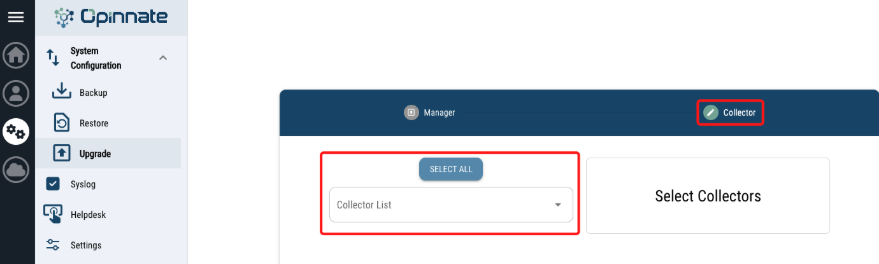
- Select the collector which one or all planned to upgrade.
- Select the upgrade zip file and click upgrade.
- Then cloud/upload icon will appear on right/up corner and click on it.
- While upgrading, services will restart, Services can be controlled with “watch docker ps” from cli.
After Upgrade
- Check the remote authentication.
- Provide Coupon Code for trial usage on Add-Ons (Opinnate Support).
- Trigger manually Renew Data process.
- Check the ssl connection from client to Opinnate Manager.
- Check the Alert Composer Alerts if any of them could be triggered.
- Check the SMTP Server connection with sending a test mail.
- Check the connectivity between Manager and Collector.
- Check the existence Unused Address & Unused Address Group Widget in Virtual Area Dashboard.
- Create tasks for newly added Rule Usage types.
- Export Rules Excel & PDF for testing. Export file will be generated in Compliance & Reporting > Export.
- Check the Alerts under Alert & Notification Setting for existence and newly added, then enable Collector alarms if needed.
- Create Debug File for checking.


